
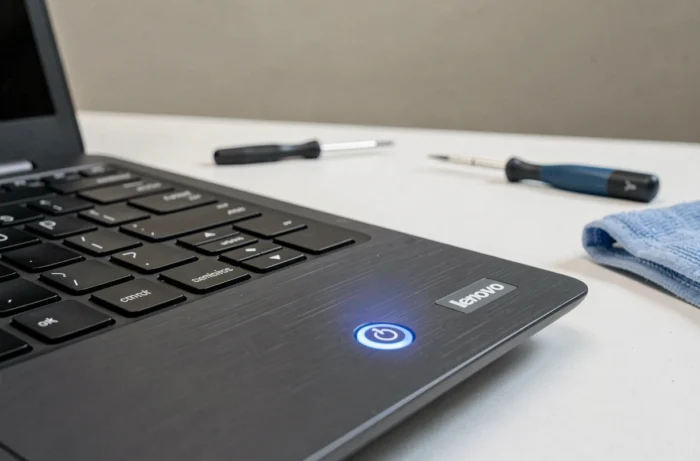
Your Lenovo laptop remains off, but the power button blinks endlessly. The screen does not turn on, and there are no beeps. This blinking is not random: it indicates a specific state of the hardware or firmware, and each light pattern points to a different cause.
Blinking related to firmware and Modern Standby on Lenovo
Most online guides point to the battery or charger. However, an increasingly common cause escapes these classic diagnostics: a conflict between the BIOS firmware and Windows power management.
On recent models (IdeaPad, Legion Go, recent ThinkPads), Windows uses a mode called Modern Standby. This mode keeps certain functions active during sleep, such as network connectivity or updates. The problem arises when the BIOS firmware does not communicate properly with this advanced sleep mode.
The concrete result: the laptop appears to be off, the power button blinks, but the machine is stuck in an intermediate state between sleep and shutdown. It does not restart, and the blinking persists until the conflict is resolved.
Lenovo even removed a BIOS (version V42 / N3CN42WW on the Legion Go) after users reported black screens upon reboot, with the only sign of life being a blinking power button. Similar cases affected the IdeaPad Pro 5, requiring a switch to “Crisis BIOS” mode with a special USB key at a service center to recover the device. Understanding why the Lenovo power button blinks also involves checking the installed firmware.
Battery and power supply: hardware causes of the blinking power button
Have you noticed that the blinking changes rhythm depending on the situation? A slow blink (a pulse every two to three seconds) generally indicates that the laptop is in normal sleep. A fast and continuous blink signals a more serious problem.
Faulty charger and power outlet
A charger that no longer delivers enough power causes a rapid blink. The laptop detects a power source, attempts to start, but fails due to insufficient current. Testing with another compatible charger eliminates this hypothesis in seconds.
The power outlet (the connector on the laptop) may also be at fault. A loose connection at this point produces the same symptom. A telltale sign: the charging light turns on and off when the cable is slightly moved.
Battery at the end of its life or disconnected
A battery that no longer holds a charge can prevent startup even when plugged in, as some Lenovo models check the battery status before launching the BIOS. Here are the checks to perform:
- Unplug the charger, remove the battery if it is removable, wait a minute, then plug the charger back in alone and attempt to start
- On models with an integrated battery, use the reset pinhole located under the laptop, accessible with a paperclip
- Observe if the LED charging light stays on when the charger is plugged in without the battery: if so, the battery is likely defective
Motherboard and internal components: when blinking signals a serious failure
If the charger works, the battery is ruled out, and the firmware is up to date, the blinking may indicate a fault on the motherboard. Some blinking patterns are coded by Lenovo to guide diagnostics.
For example, a sequence of three quick blinks followed by a pause may point to a problem with the RAM. A poorly seated RAM stick after a shock or transport is enough to cause this behavior.
Hard reset of the Lenovo laptop
Before concluding a motherboard failure, a simple procedure can eliminate false positives:
- Completely turn off the laptop by holding the power button for ten seconds
- Unplug the charger and any USB devices
- Wait about a minute for the capacitors to discharge
- Reconnect only the charger, then press the power button
This forced power cycle resolves a significant portion of persistent blinking. Lenovo recommends this procedure before any contact with technical support.

Lenovo BIOS update: precautions to avoid blinking
The case of the V42 BIOS removed by Lenovo illustrates a real risk. A poorly managed BIOS update can turn a functional laptop into a bricked device, with the only symptom being a blinking power button and a black screen.
A few rules protect against this scenario. Never initiate a BIOS update on battery: a power cut during the flash makes the motherboard unusable. Check on the Lenovo support site that the proposed version has not been withdrawn or reported as problematic.
If the blinking appears just after a BIOS update, the forced power cycle (long press for ten seconds, wait, restart) remains the first attempt. If that fails, only an authorized service center has the tools for a recovery BIOS flash via Crisis mode.
When to call a professional for repair
The persistent blinking of the power button after all these checks points to a hardware repair by a professional. A workshop diagnosis allows for precise identification of whether the problem comes from the motherboard, the power circuit, or a defective soldered component.
One last point to keep in mind: opening a Lenovo laptop under warranty voids that warranty. If your device is less than two years old, going through official Lenovo support remains the safest route, even if the turnaround time may be long.